The crew app
The whole job, in their pocket.
Your crews see the day's jobs in order, what to load in the truck, what to do on site and which photos to bring back. It keeps working without signal, and it never shows them a price.
- Any phone
- Works offline
- No prices shown
Their day
Every stop, in order
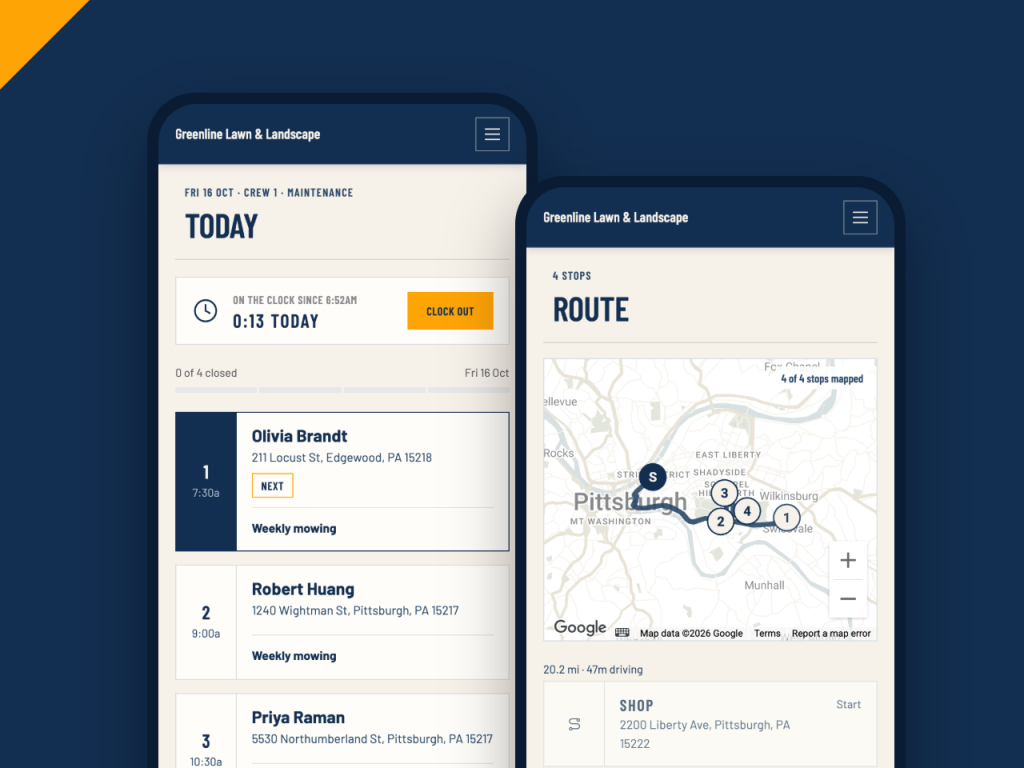
Crews open the app and see today's jobs in the order you scheduled them, with the address, the time and the work. The route view maps the whole day with the drive time between stops.
- The next job is always marked
- One tap to navigate or call the customer
- Route map with drive time between stops
Before they leave the shop
Load the truck right the first time
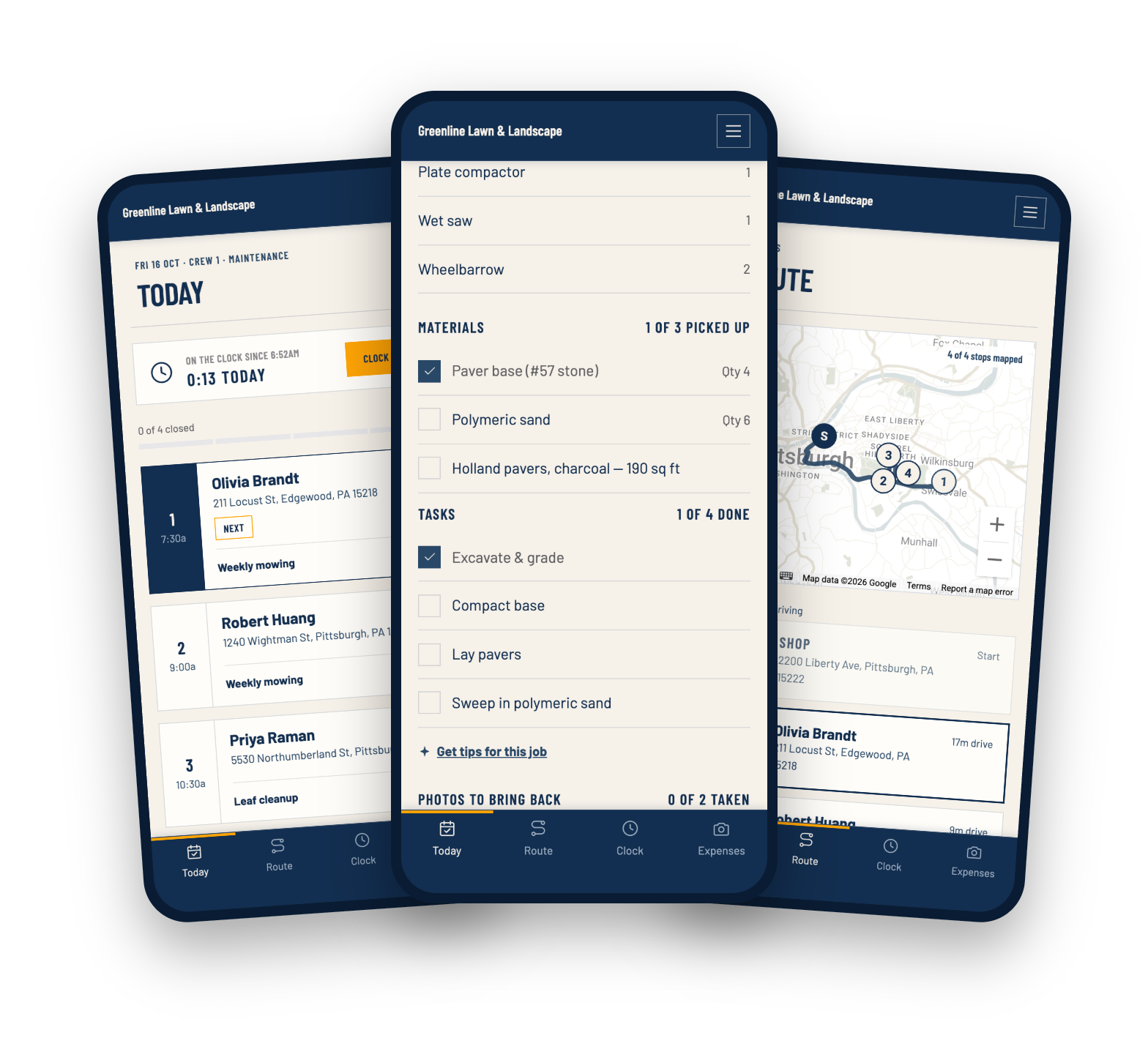
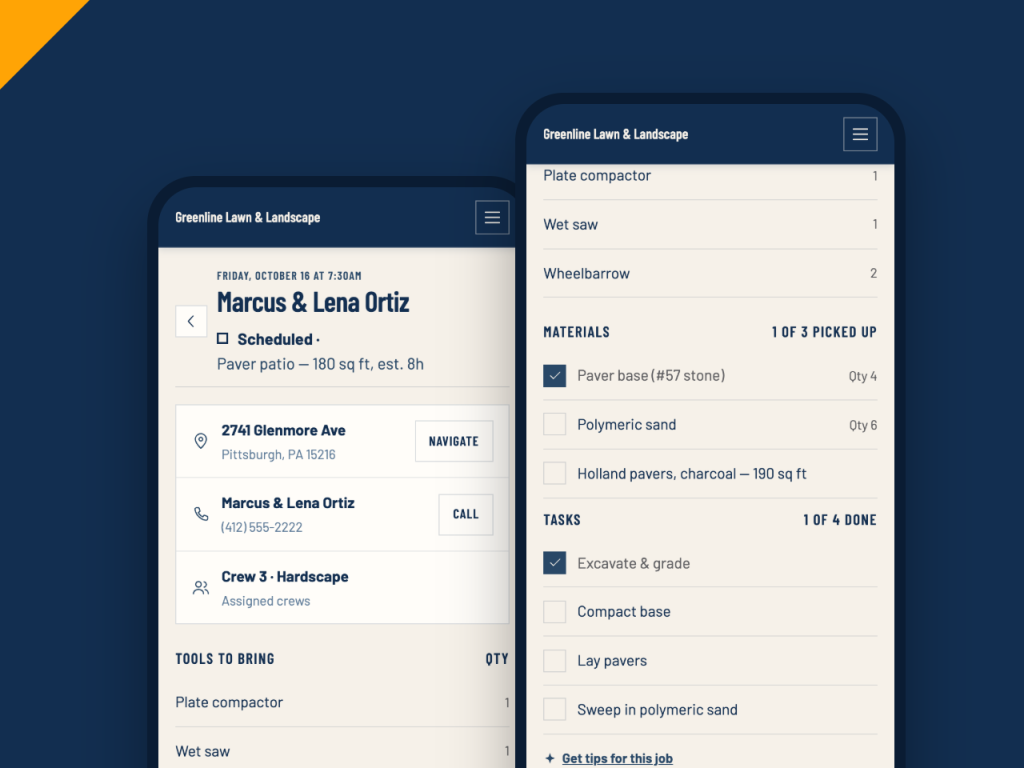
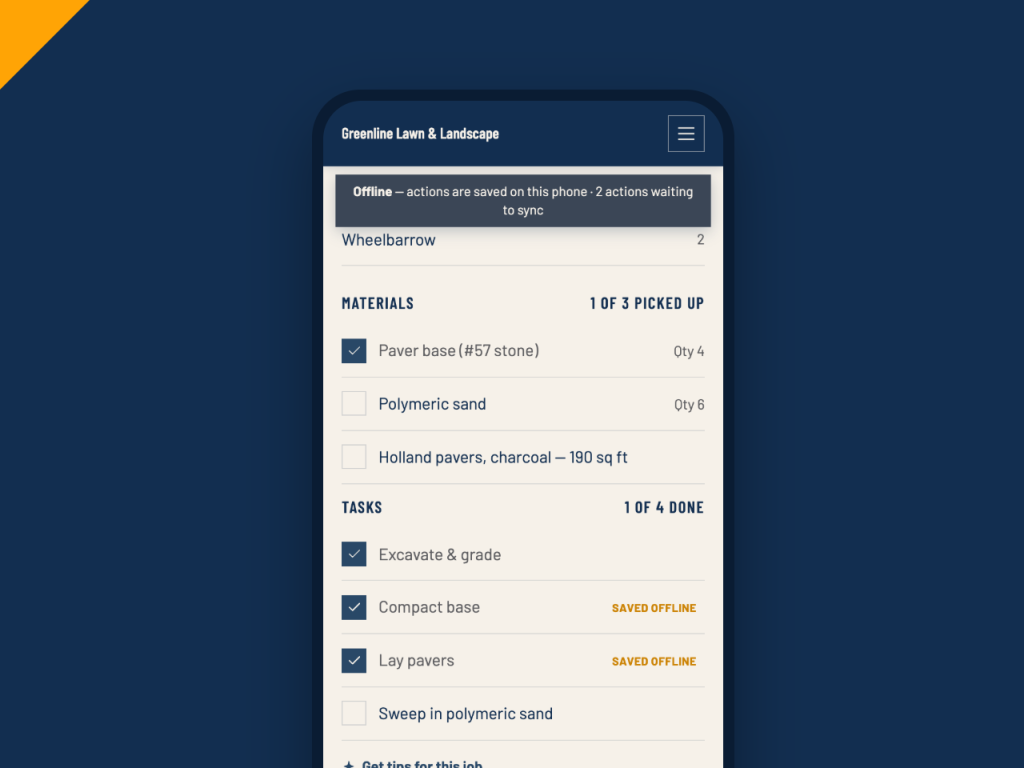
Each job lists the tools to bring and the materials to pick up, pulled from the tool kits and materials you set up once. Crews tick materials off as they load them.
- Tool kits with quantities
- Materials checklist with a picked-up count
- The job's task list, ready to work through
On site
Every job done the same way
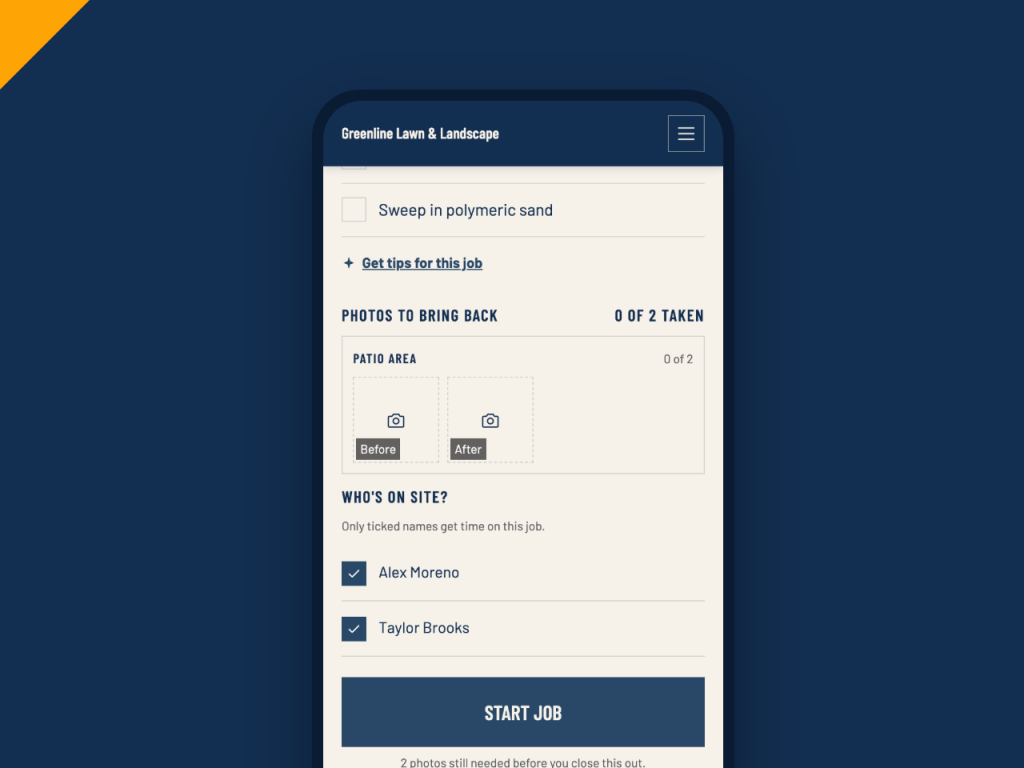
Each kind of job carries its own checklist and the photos you want back, so a new hire works through a patio or a mulch job the way your best crew does. Before and after photos land on the job, not in someone's camera roll.
- Checklists from your job types
- Before and after photos, with a reminder before closing out
- Tick who is actually on site, so only they get time on the job
- Flag a problem straight to the office
No signal
Works where the signal doesn't
Backyards, basements and rural routes don't stop the work. Clocking in, ticking off tasks and materials, taking photos, and starting or finishing a job are all saved on the phone and sync on their own.
- A bar shows what's waiting to sync
- Photos are kept on the phone until they upload
- Syncs as soon as there's signal and the app is open
Hours
Hours that add up on their own
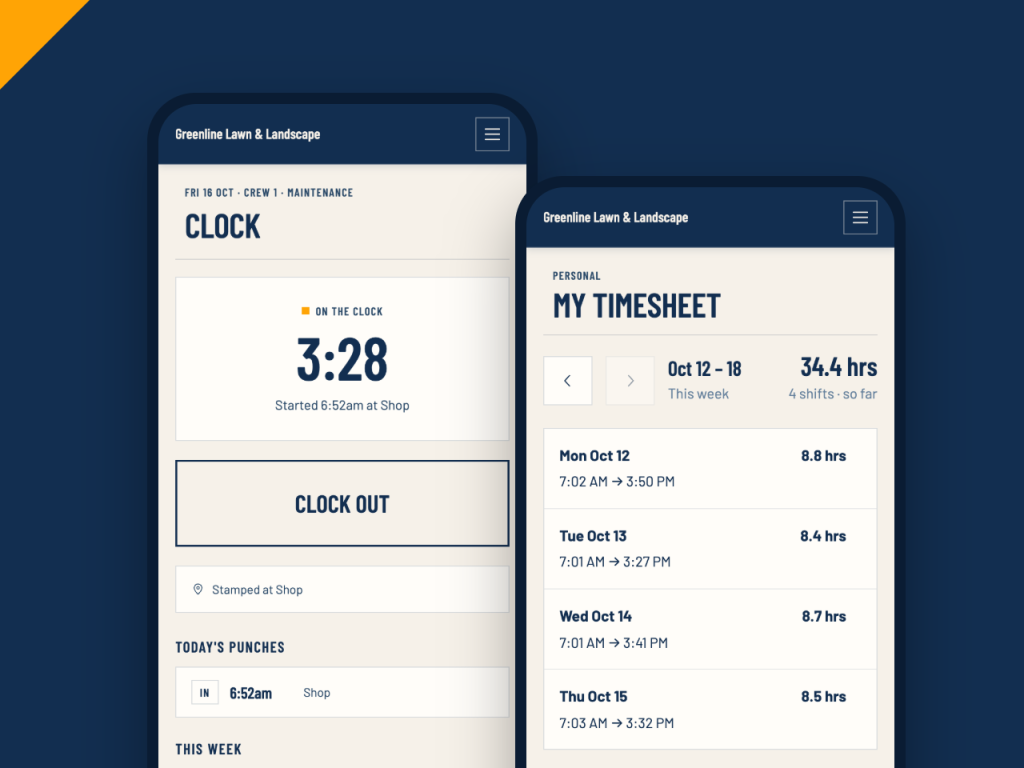
Crews clock in and out with one big button, and you can require them to be at the shop to clock in. Their week builds as they go, and they submit it when it's right.
- Optional check that they're at the shop to clock in
- The week at a glance, hours by day
- Add a missed shift, then submit the week
Also in the crew app
The small things that save a phone call
Receipts in a snap
Take a photo of a receipt and the details fill themselves in.
Time off requests
Crews ask for days off from their phone, and you approve them in the office.
No prices on screen
Crews see the work, never what you charge for it.
On any phone
It runs in the browser and adds to the home screen like an app. Nothing to download from an app store.
Visit summaries
When a job is marked done, the customer can get a summary with the photos and checklist.
Job tips, if you want them
Turn on tips and crews can get pointers for a job they haven't done before.
Crew app questions
Put it in your crews' hands
Set up your crews, invite them by email, and send them out with everything they need for the day.